
2 minute read
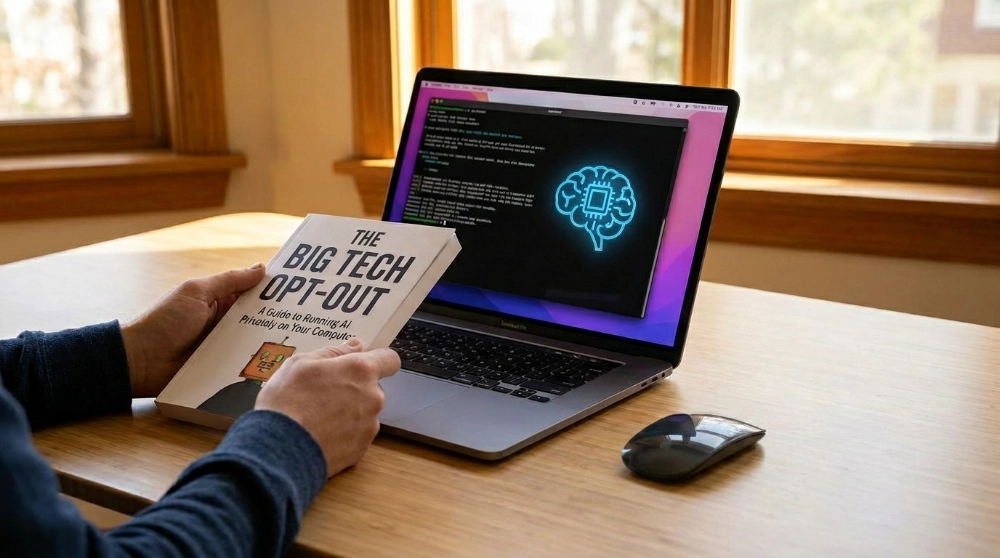
Ever feel like Big Tech is hovering over your shoulder? Every time you prompt ChatGPT or Claude, you’re basically sending a digital confession to a corporate confessional. If that gives you the “creeping dread,” it’s time to look into running your AI locally. Running AI on your own computer means you stop being the product and start being the owner. Here is how to build your own local AI brain trust.
The Privacy Escape Hatch
The biggest reason to go local is privacy. When the AI lives on your hard drive, your data stays there too. If you’re working on a secret business plan or just venting about your day, no corporation is “learning” from your input.
The best part? Once you download your model, you can unplug your internet and the AI still works. No cloud, no eavesdropping, no monthly subscription.
The Hardware Reality Check (Don’t Skip This!)
Let’s be real: you can’t run a genius-level AI on a bargain-basement laptop with no dedicated RTX graphics. AI is hungry for power, and this is where most people get stuck.
- Memory (RAM): You’ll want at least 16GB to 32GB of total RAM to keep things from freezing.
- The Engine (GPU): This is the deal breaker. To run a model like Gemma 4, you really need a dedicated graphics card (like an Nvidia RTX) or a modern Mac with an Apple silicon chip (M1 through the latest M5).
- The Warning: If you don’t have a graphics card and try to run this using only your computer’s main processor (CPU), it won’t just be “slow” (it will be agonizing). You might wait ten seconds for a single word to appear. For everyday use, a GPU or an M-series Mac is non-negotiable.
Choosing Your Software
You don’t need to be a coder to do this. Here are two suggested paths:
- LM Studio (The “Easy Mode”): This feels like a regular app. It has a visual interface where you can search for models, click “Download,” and start chatting. It’s perfect for beginners.
- Ollama (The “Fast Mode”): This is for people who want zero clutter. It’s lightweight, fast, and stays out of your way.
How to Get Started (30 Seconds)
If you choose Ollama, getting a high-end brain like Gemma 4 onto your machine is surprisingly painless:
- Install: Grab the installer from ollama.com.
- Open your Terminal:
- On Mac: Press
Command + Space, type “Terminal,” and hit Enter. - On PC (Windows): Right-click the Start button and select Terminal (or PowerShell).
- On Mac: Press
- Type the Magic Words: Type
ollama run gemma4and hit Enter.
Ollama handles the rest. It downloads the model and starts the chat immediately. If your computer sounds like a jet engine, try the lighter version by typing ollama run gemma4:e4b instead.
The Knowledge Cutoff (and the Fix)
One thing to keep in mind: most local models are a snapshot of the past. For example, Gemma 4 knows things up until 2024. If you ask it who won the game last night, it might look at you blankly.
However, you can bridge the gap. In the latest versions of Ollama, you can actually tell your model to search the web for new information. This gives you the best of both worlds: the privacy of local AI with the reach of a search engine.
So, what’s next?
Setting up local AI is about autonomy. It might take a bit of time to download those massive files, but owning a private, free, and permanent AI assistant is a vibe that is hard to beat.
Are you going to keep feeding the cloud, or are you ready to run your own show?
Want to read more about AI?
- Nvidia Just Agreed to Backstop $250 Billion So OpenAI Can Buy Nvidia Chips
- Your AI Picked a Lock Last Week and nobody panicked?

- New York Just Slammed the Brakes on AI Data Centers. Who’s Next?